Add Tracking Token
Use a Tracking Token to securely connect with family members and start real-time location tracking.
By adding a shared token inside the Famalth ONE App, you ensure direct, encrypted tracking without exposing location data publicly.
Overview
Adding a tracking token allows you to:
- Start live tracking of trusted family members who have shared their token with you.
- Maintain continuous real-time location updates.
- Strengthen your family's safety network securely and privately.
Tokens serve as private keys that authorize trusted location sharing between devices.
Why Adding a Token is Important
| Benefit | Description |
|---|---|
| Secure Connection | Only people with the valid token can view each other’s live location. |
| Privacy Protection | No public sharing — fully encrypted and device-to-device tracking. |
| Instant Setup | Adding a token starts tracking immediately with no complicated setup. |
Step-by-Step: Add a Tracking Token
Follow these steps to add a family member’s tracking token:
- Open the Famalth ONE App.
- Navigate to Dashboard → Family Tracking.
- Tap Add Token.
- Enter Family Member Name or select the member from your phone contact.
- Enter or paste the Tracking Token exactly as shared by your family member.
- Tokens are case-sensitive.
- Confirm the token.
- Enter Phone Number (if adding member details manually).
- Save the new family member entry.
View Screenshot
Step 1: Navigate to Family Track from Dashbaord
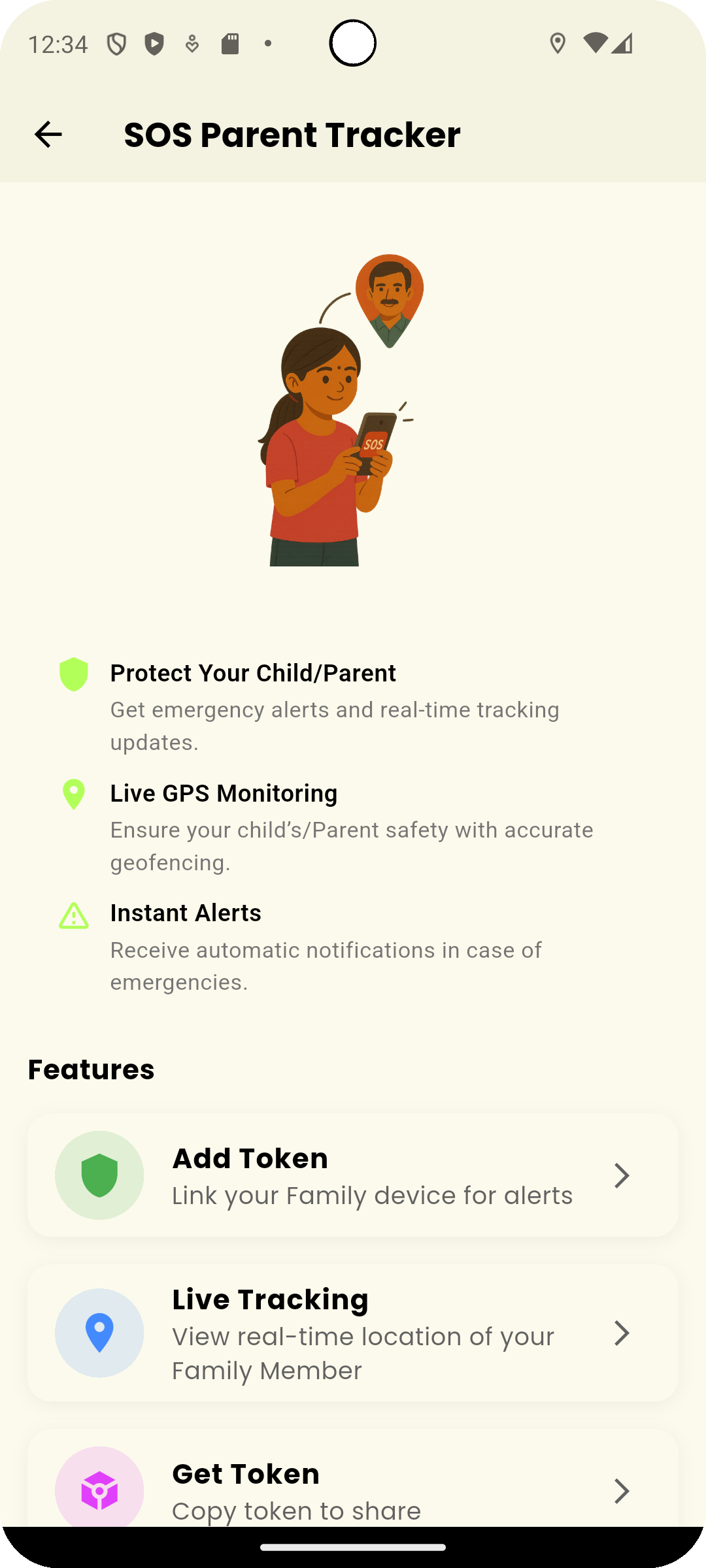
Step 2: Tap on Live Tracking option to add member contact details.
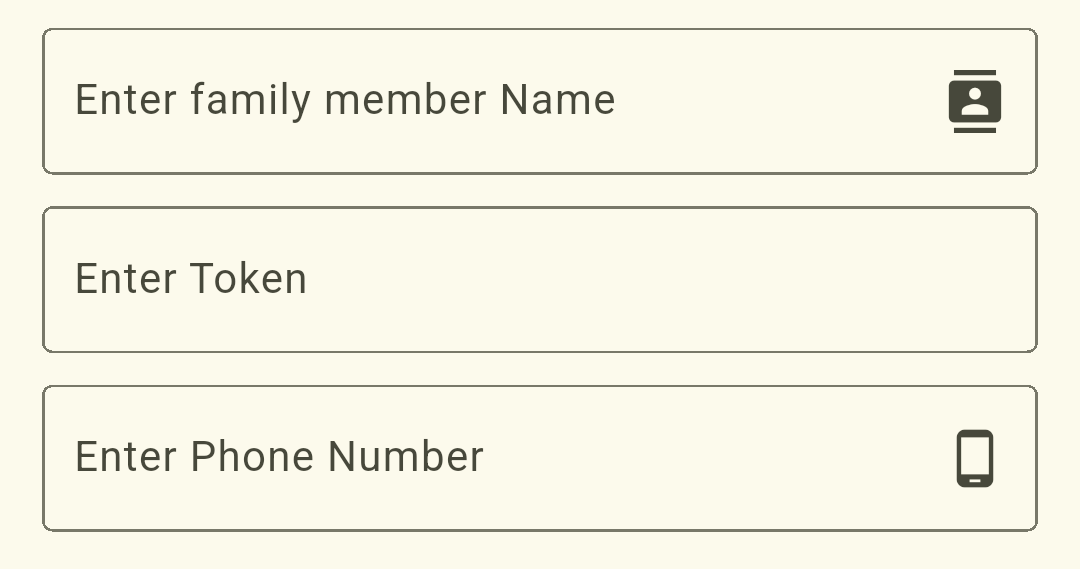
Step 3: Add token of the family member's Famalth ONE App.
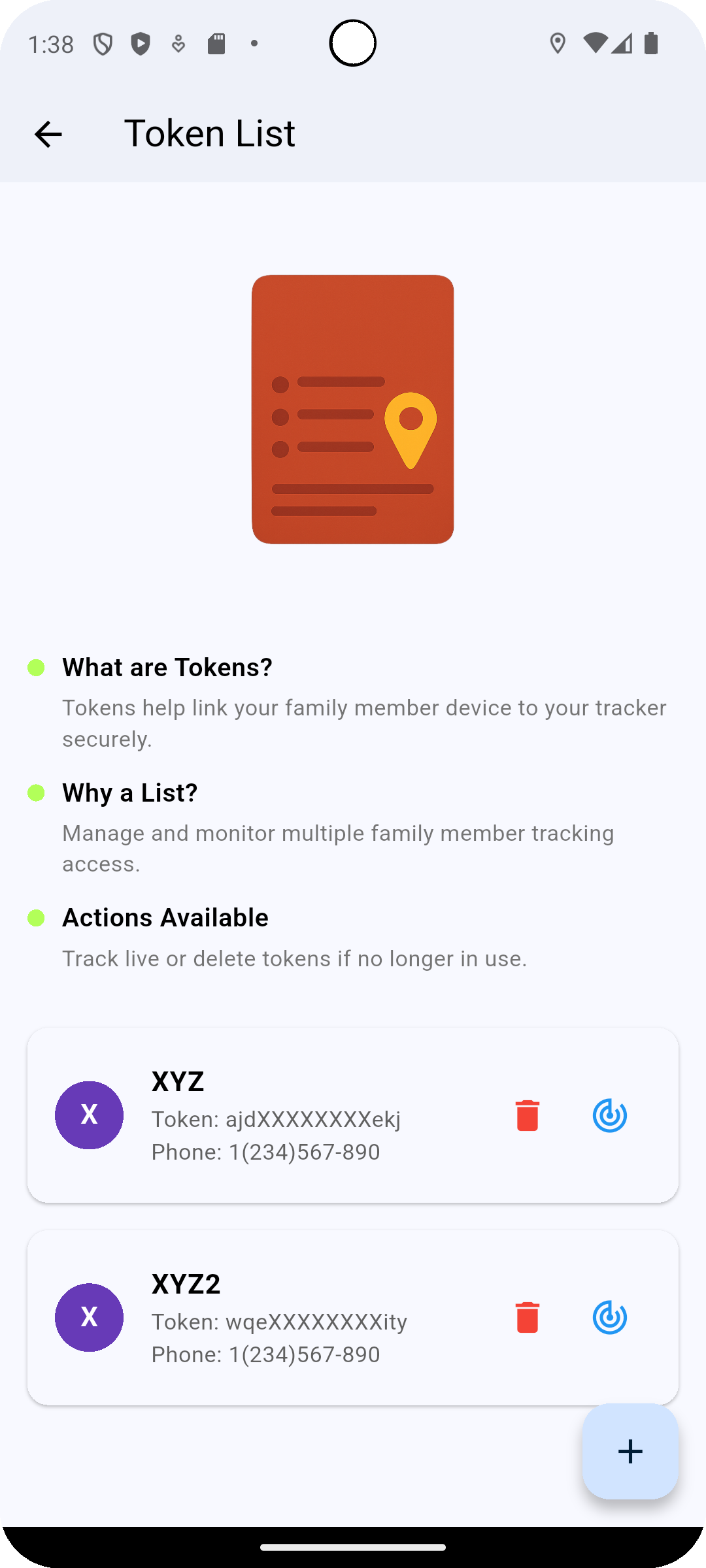
Step 4: Now, check the added member list.
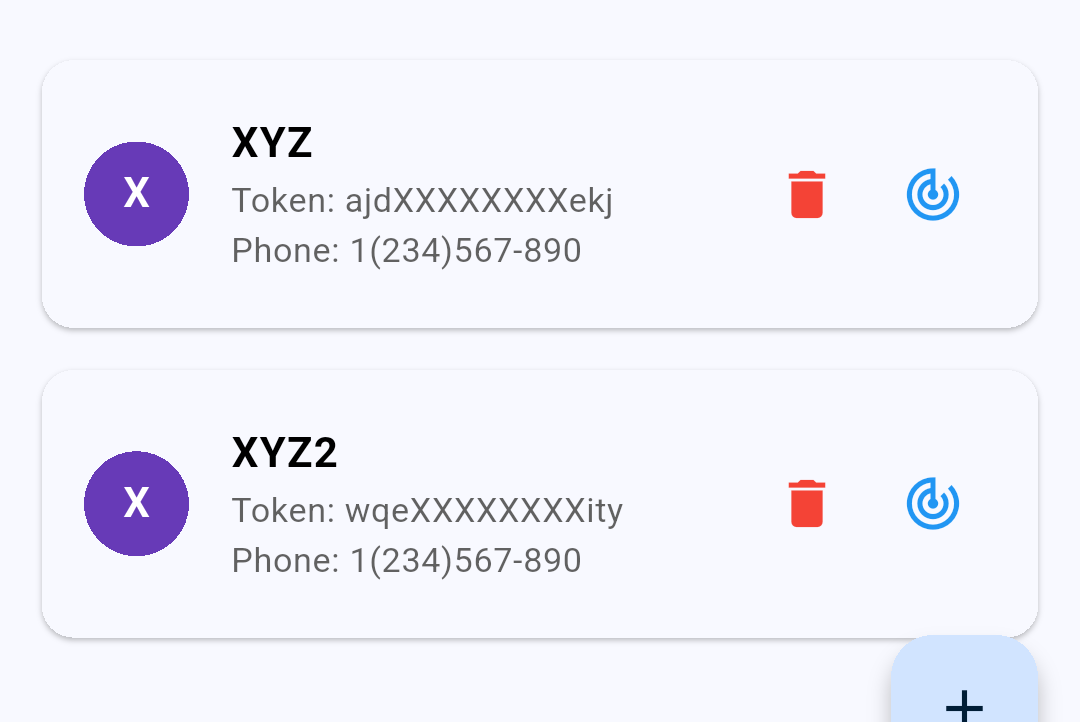
Step 5: Track live location by clicking get location icon.
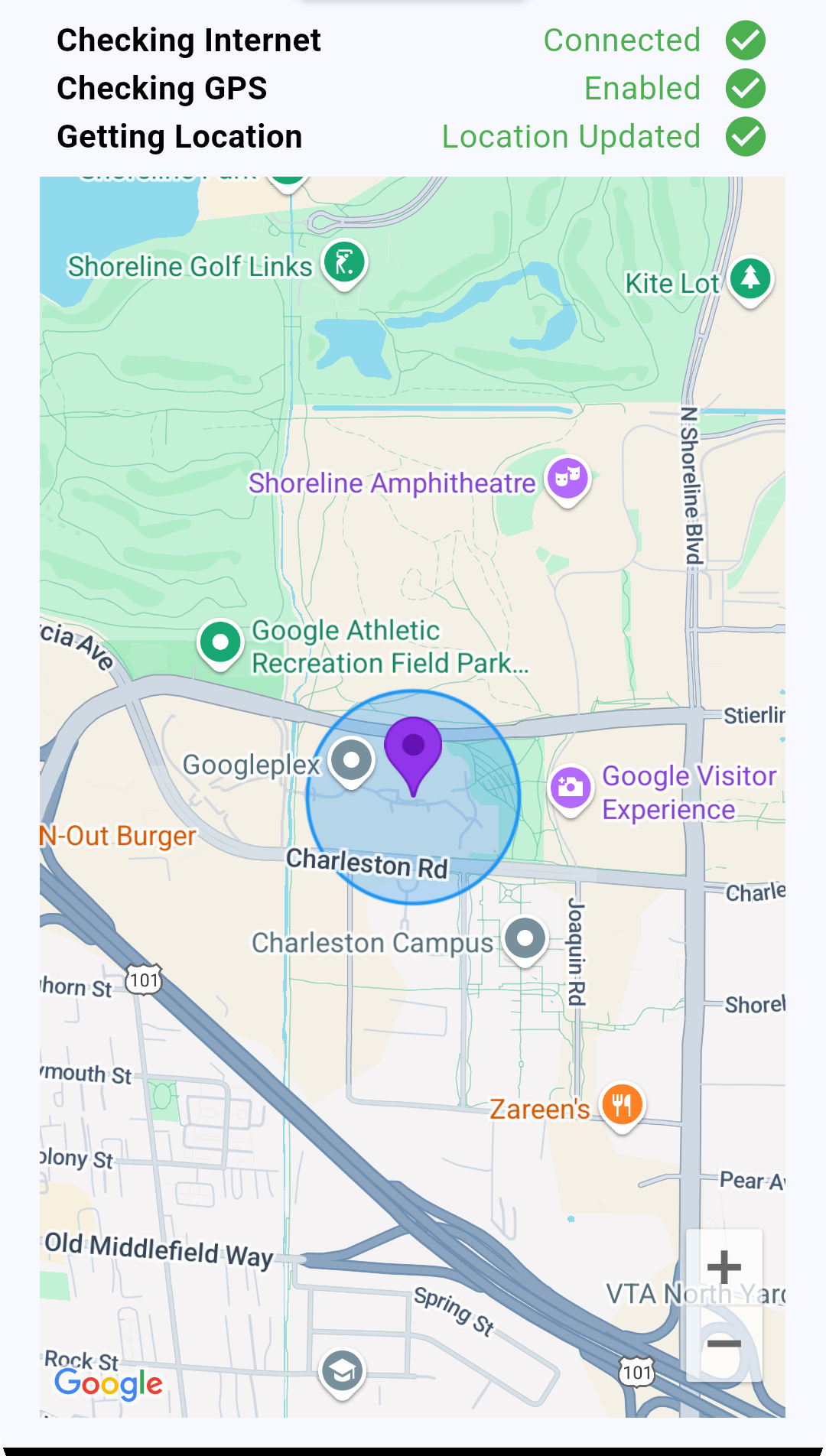
Once saved, you will begin receiving their real-time location updates instantly.
Always verify the token is entered correctly — tokens are unique and private to each user.
Best Practices for Adding Tokens
| Recommendation | Why It Helps |
|---|---|
| Share tokens only with trusted individuals | Prevent unauthorized tracking access. |
| Copy-paste tokens if possible | Reduce manual entry errors. |
| Regenerate your token if compromised | Reset tracking permissions instantly by issuing a new token. |
| Keep device location and internet ON | Ensure smooth and continuous tracking. |
Common Questions
What happens if I enter the wrong token?
The app will show an invalid token error.
Verify the token and re-enter it carefully (tokens are case-sensitive).
Can I add multiple tokens?
Yes. You can add and track multiple family members simultaneously by entering different tokens.
Can I remove a family member after adding their token?
Yes. You can delete any added family member from your Family Tracking list at any time.
Will adding a token notify the other person?
No notification is sent when you add a token.
Tracking only starts once the token relationship is established privately.
| Issue | Solution |
|---|---|
| Invalid token error | Check if token was typed correctly (case-sensitive). Reconfirm with the sender. |
| Unable to track after adding | Ensure both devices have active internet and location permissions enabled. |
| Location updates delayed | Improve mobile network signal or reconnect tracking. |
| Accidentally added wrong person | Delete the entry from your Family Tracking list and re-add correctly. |
Conclusion
Adding a Tracking Token builds a secure, private connection between you and your trusted family members for real-time location sharing.
This simple yet powerful system strengthens safety without compromising privacy or security.
Add tokens today to create a trusted emergency response network within your Famalth ONE App.
What's Next
Learn how to monitor live location updates of your family members after adding their token.